




Mini session season is exciting — until you’re manually tracking who paid, who grabbed a slot and ghosted, and whether that 3:15 spot is actually taken or just feels taken. (If you haven’t thought through when you’re opening your fall calendar yet, this post is worth reading first.)
If you’re using Dubsado, you already have everything you need to book mini sessions automatically, take payment upfront, and send confirmation and reminder emails without lifting a finger. Most photographers just don’t know how to set it up.
This post walks you through exactly how to book mini sessions with Dubsado — from scheduler settings to workflows to the one step most people skip that causes all the chaos.
I’m Colie James — a Dubsado Certified Specialist and Client Experience Systems Strategist who helps photographers build systems that run their client experience without them having to babysit every step. Setting up mini session booking is one of the things I do inside Dubsado with my clients — and this post covers exactly how I approach it.
Why the Dubsado Scheduler Works So Well for Mini Sessions
Mini sessions are high-volume by nature. You might be booking 10, 15, even 20 slots across one or two days. Doing that manually — sending individual invoices, waiting on payments, hoping nobody double-books — is a disaster waiting to happen.
The Dubsado scheduler solves the two biggest mini session problems:
Problem 1: People grab a slot and don’t pay. With required payment turned on, a slot is not reserved until money hits your account. If someone starts the process and walks away before paying, that time slot stays open. Someone else can grab it. You don’t have to manage any of that — Dubsado handles it automatically.
Problem 2: Double-booking. If you’re not using the scheduler — or you accidentally leave it set to “available” instead of “busy” — nothing prevents two people from landing in the same slot. The scheduler, set up correctly, takes care of this for you. Every booking pulls that time off the calendar the second payment is confirmed.
That’s the setup we’re building today.
Step 1: Set Your Scheduler Availability
Before you touch anything else, you need to make some decisions about how your mini sessions will actually run.
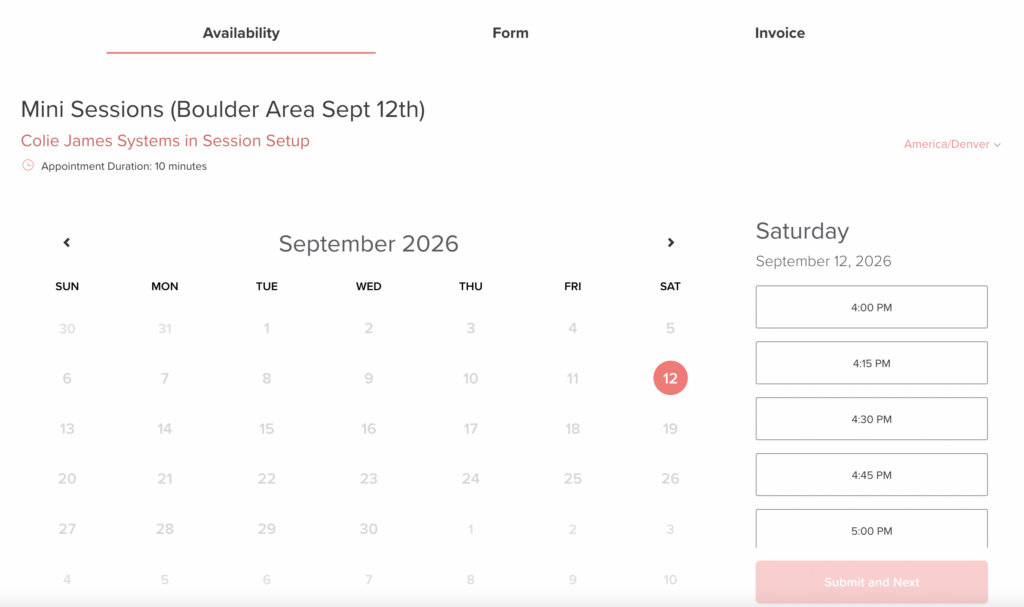
How long is each session? Mini sessions typically run anywhere from 10 to 20 minutes. Whatever your session length is, that’s what you’ll set as the appointment duration.
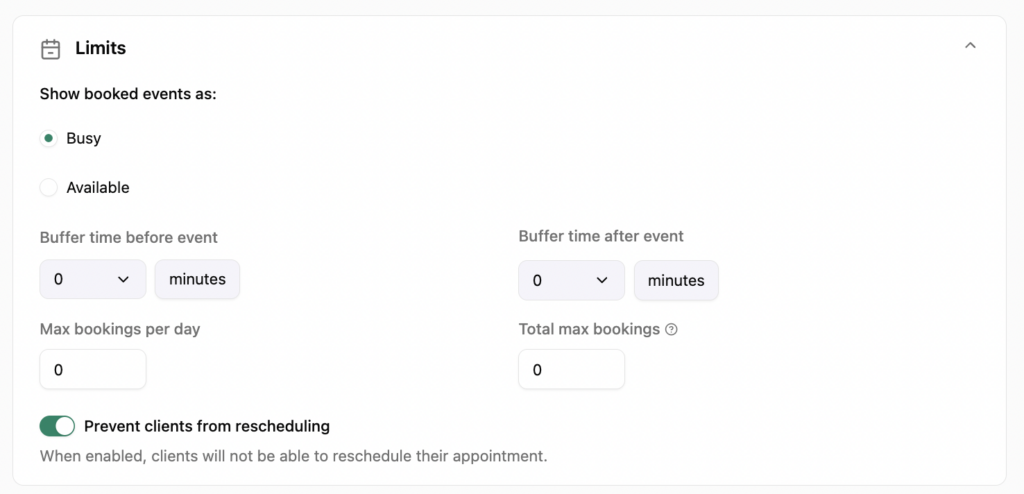
How long do you need between sessions? Here’s a trick: instead of adding a buffer inside the scheduler settings, build it in using the booking increment. If you have 10-minute sessions but want 5 minutes between each one, set the session duration to 10 minutes and the booking increment to 15 minutes. Clients only see the start times — they don’t see the gap — and you get your buffer without anything showing up as “unavailable.”
Do you want to cap the number of bookings? If you’re doing these on fixed dates and want to sell every slot, leave this open. If you only want to do 12 sessions even though the math says 16 fit, you can set a maximum so the scheduler stops accepting bookings when you hit your limit.
Will you allow last-minute bookings? This one matters more than people think. If your mini sessions don’t sell out immediately, you might have open slots the day before — or even the morning of. You can set a minimum notice period (I recommend at least 48 hours) so you don’t get a booking notification two hours before you’re supposed to be at the park.
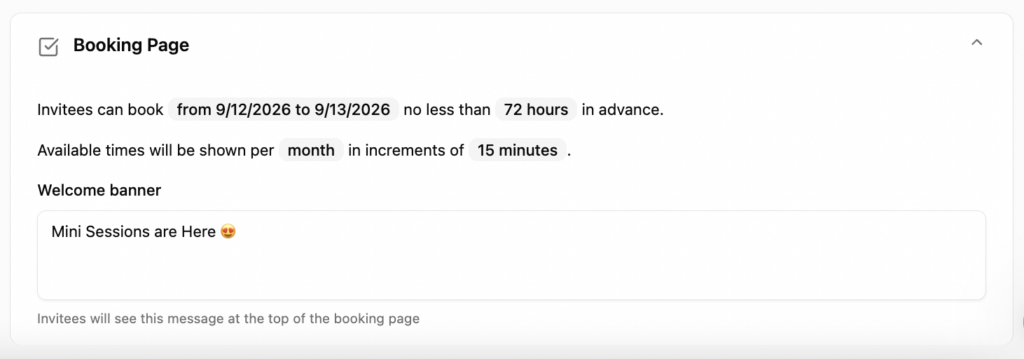
Once you’ve made those decisions, set a fixed date range — not rolling availability — so the scheduler only shows the specific dates you’re offering mini sessions. Dubsado will automatically open to the first available date when someone clicks the link, which keeps the experience clean. NOTE: in Dubsado 3.0 if you set the availability for the exact date 09/12/2026-09/12/2026 it will give you an error.
And please — make sure the scheduler is set to mark you as busy when someone books. If you accidentally leave it on “available,” nothing stops someone from booking the same slot twice.
Step 2: Add Your Invoice to the Scheduler
In the Advanced tab of your scheduler, you’ll find the invoicing section. This is where you add your mini session package directly to the scheduler and toggle on required payment.
Give it a clear name, write a description that spells out what’s included — session length, number of images, whether they can purchase more after — set your price, and turn on the required payment toggle. [NOTE: there is no actual toggle in Dubsado 3.0. Entering the payment information makes it required].
A slot is not reserved until payment is received. Period.
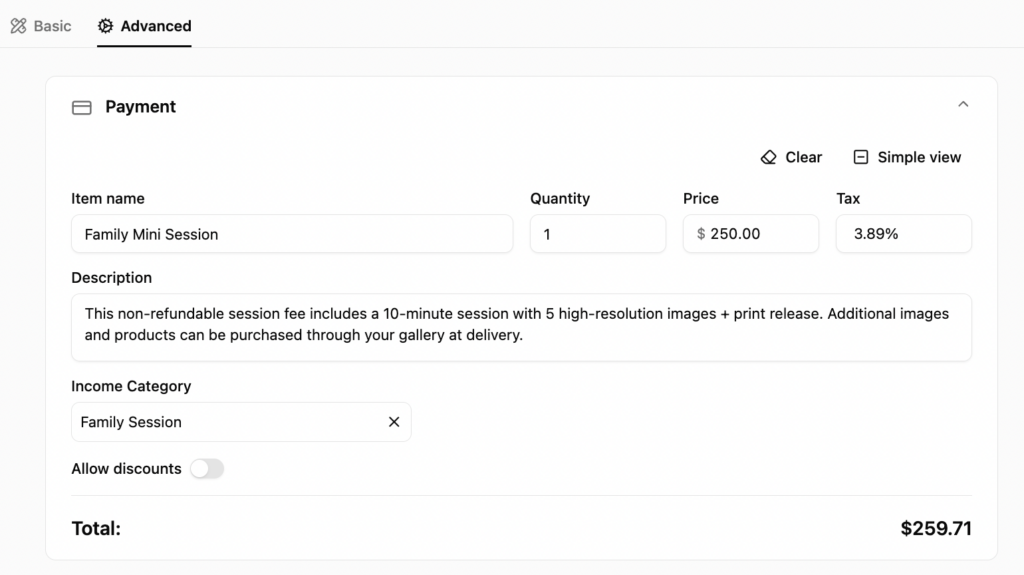
A few things worth knowing here:
If someone starts the booking process but walks away before paying, the slot stays open. When they come back and try to finish, Dubsado will tell them if it’s been taken. You don’t have to do anything.
When someone starts the booking process, Dubsado creates a project even if they never complete payment. Keep an eye on your projects and archive the incomplete ones periodically. They haven’t reserved a slot, but they do create clutter.
If you want to offer add-ons at booking — like upgrading to a full gallery — you can attach a proposal instead of a simple invoice. They’ll still only need to pay the base session fee to hold their slot. The upgrade is optional.
What about deposits?
Possible, but it adds complexity. The amount on the scheduler invoice is the only thing required to confirm the booking. So if you want a $50 deposit on a $250 session, put $50 on the scheduler invoice and collect the remaining $200 through a separate invoice later — either through a proposal or a workflow step. Just make sure your clients are completely clear that the $50 isn’t the full amount they owe.
Step 3: Set Up Confirmation and Reminder Emails
Dubsado will send a default confirmation email when someone books. It’s plain. It does not match your brand. Write your own.
Your confirmation email should include the date and time they booked, the location (or a note that you’ll send details closer to the session), what to expect next, and any urgent info they need right now — like your late policy, or that a style guide is coming. NOTE: you cannot send a Dubsado form from a scheduler. This must be done from a workflow after the slot is booked.
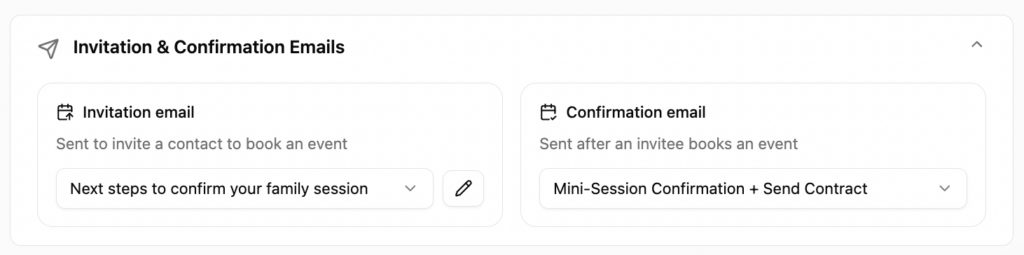
For reminders, think about how far out you’re booking. If your mini sessions open in July for October dates, one reminder two weeks out isn’t enough. Add a few — maybe one at two weeks, one at one week, and one the day before or morning of with specific location details and a reminder about your late policy.
Any reminder that needs to include appointment details — the specific date, time, or location smart field — has to be sent from the scheduler, not from your workflow. Appointment smart fields in workflows only work when the scheduler was sent through that workflow. Since your mini session scheduler is public, those fields will show up blank in a workflow email. Build your reminder emails inside the scheduler settings.
Step 4: Attach a Lead Capture Form
If you don’t attach a form to your scheduler, Dubsado only adds the booking to your calendar — it doesn’t create a project. You want a project. That’s how everything else gets tracked, how your workflow triggers, how you find this client again later.
Attach a lead capture form (also called a contact form) to your scheduler. And keep it very short — shorter than you think.
There is no save button on a form attached to the Dubsado scheduler. The client has to complete it in one sitting. And the time slot isn’t held until both the form is completed and payment is made. Every extra field is another opportunity for someone to abandon the process before money hits your account.
You only need name, email, phone number, and address. Maybe one or two session-specific questions — how many people are in the family, any special needs — but no more than that.
Save everything else — family size, special requests, what they’re wearing — for a questionnaire you send after they’re confirmed and paid. At that point they’re committed, they have time to think, and there’s no risk of losing the booking over a form that took too long.
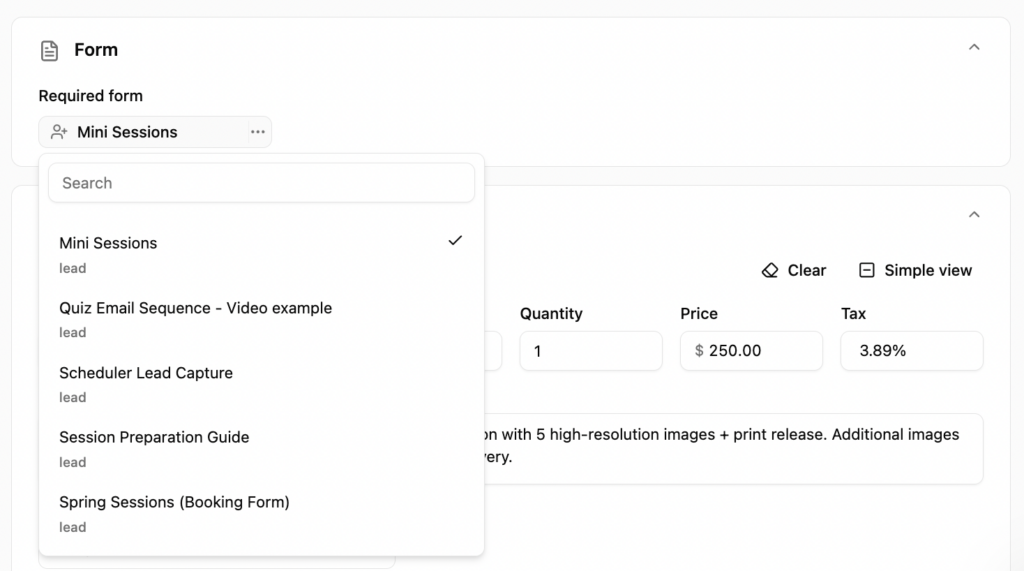
If you want to offer upgrades at booking, use a public proposal instead of a lead capture form. There’s a specific setting inside the proposal that makes it public and able to create a project — make sure you toggle that on, or it won’t work the way you expect.
Step 5: Add a Redirect URL
When someone completes their booking, Dubsado shows a generic white screen. You can do better.
Set up a redirect URL that sends them to a page on your website — a custom thank you page with a welcome video, a sneak peek at the location, prep tips, whatever feels right for your brand. Even a simple page with your logo and a warm note beats that blank screen. If you want ideas for what to put on that page, I go deeper on improving your client experience post-booking and why that moment matters more than most photographers realize.
Bonus: you’re sending traffic back to your own website instead of leaving people sitting on a Dubsado page.
Step 6: Build Your Workflow
You don’t have to have a workflow for mini sessions. But this is honestly the biggest reason to use Dubsado instead of a dedicated booking tool like Session. Session handles the booking just fine — but once someone pays, you’re largely done. There’s no automated questionnaire, no prep guide, no review request going out automatically after delivery. If you want to customize the experience after the booking, you need a CRM with workflows. I break down exactly how Session and Dubsado compare here — but for mini sessions where you’re managing 10, 15, or 20 clients at once, that post-booking automation is what keeps things from falling apart.
Here’s what a mini session workflow should include:
A signed contract. You cannot attach a contract directly to the Dubsado scheduler — it gets stripped out. The only way to send one automatically is through a workflow.
And if you require a contract: the session isn’t fully booked until that contract is signed. Payment holds the slot. The signed contract makes it official.
Hi {{client.firstName}}-
Your mini session is paid and your spot is reserved — now there’s just one more step to make it official.
Please complete the contract linked below within 24 hours.
{{job | contractLink}}
Once that’s signed, you’re fully booked! I’ll send over a quick questionnaire and all the prep details you need before your session.
xoxo, Colie
NOTE: I now add the contract smartfield to the confirmation email, but it won’t show for the client if you don’t add it to the newly created project through the workflow!
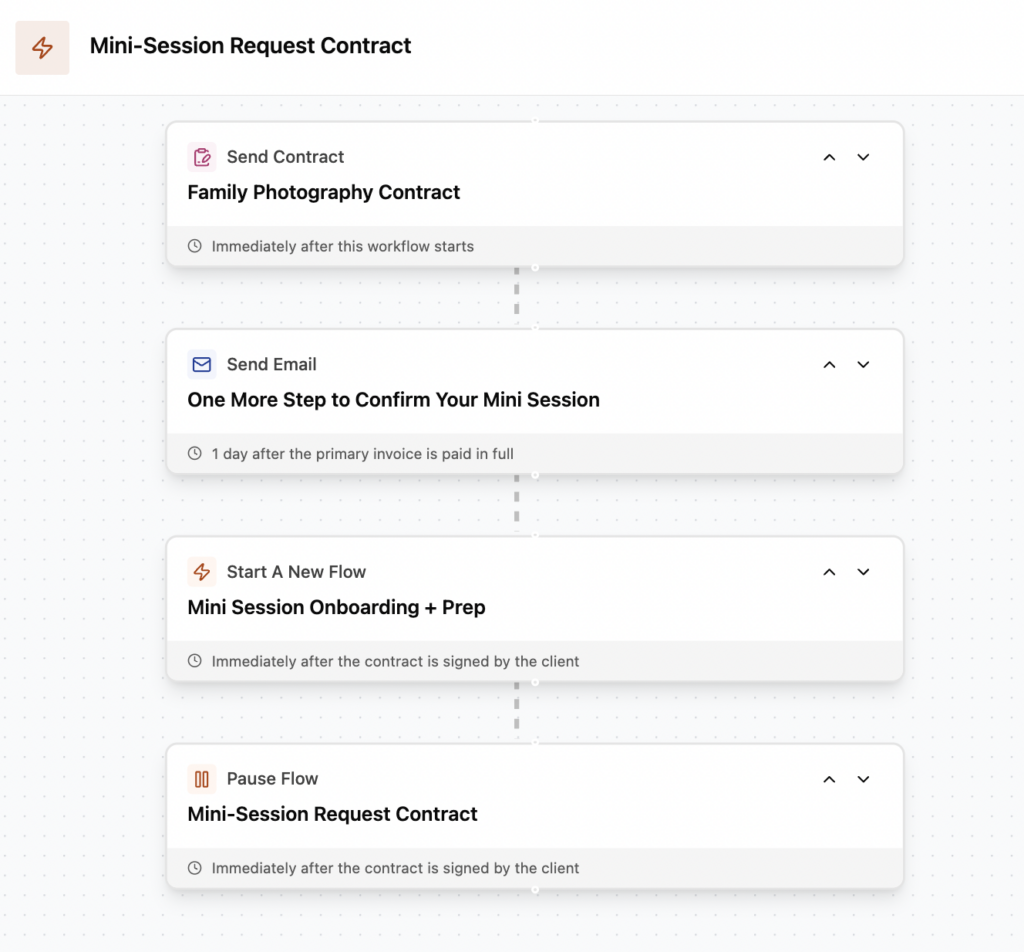
Set your trigger for the 24 hour contract reminder to after invoice paid in full. This matters because the form is completed before payment. If your reminder workflow trigger fires on form submission instead of payment, you’ll send a contract to someone who picked a time, filled out the form, and then never paid. They haven’t booked. Don’t treat them like they did.
The second workflow is to prep the client for their session and if you send a contract this workflow will not trigger until the contract is signed.
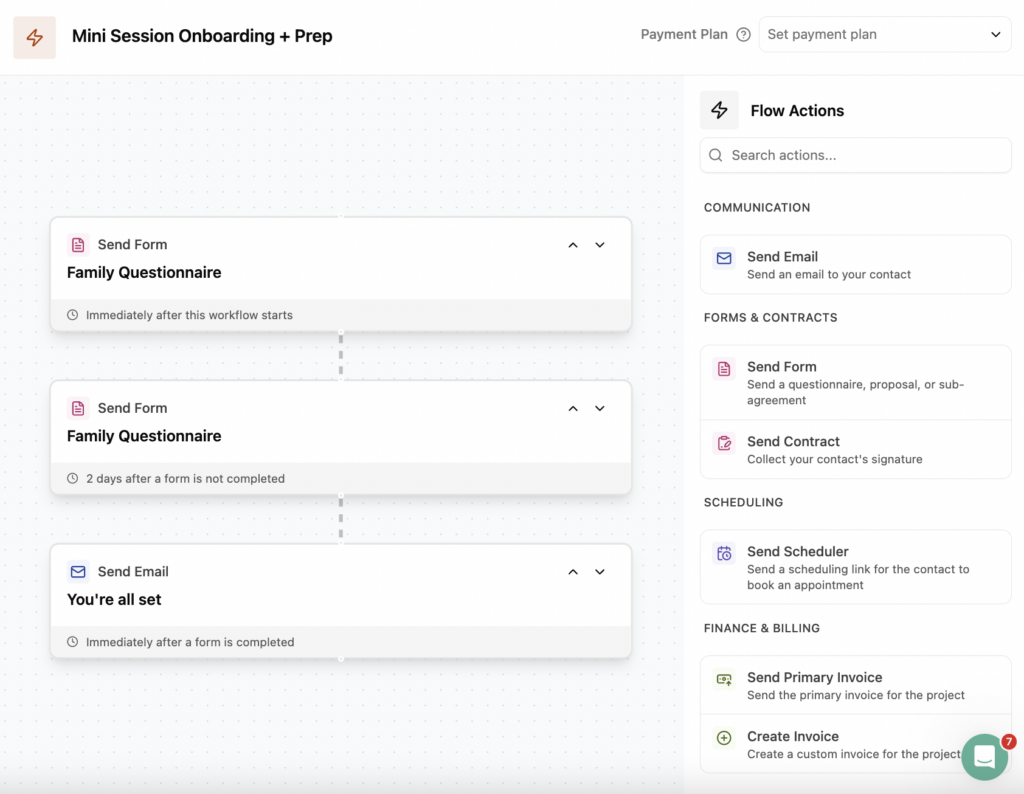
A questionnaire. Now that they’ve booked and paid, ask for what you need — names, ages, special requests, what to wear. Send this a few days after booking so it doesn’t feel like homework right after they paid.
A style or prep guide. If you have one, send right after they complete the questionnaire. Mini session clients especially benefit from clear guidance on what to wear, what to expect, and another reminder of your late policy. [You could send this inside the questionnaire confirmation email.]
A feedback request. After you deliver their images, send a review request. Set it up once and it goes out automatically every time. If you want to know exactly how to set this up so you’re actually getting Google reviews and testimonials (not just sending into the void), this post walks through the whole process.
With Dubsado’s new bulk actions feature, I recommend you send a separate feedback workflow after the galleries have been delivered.
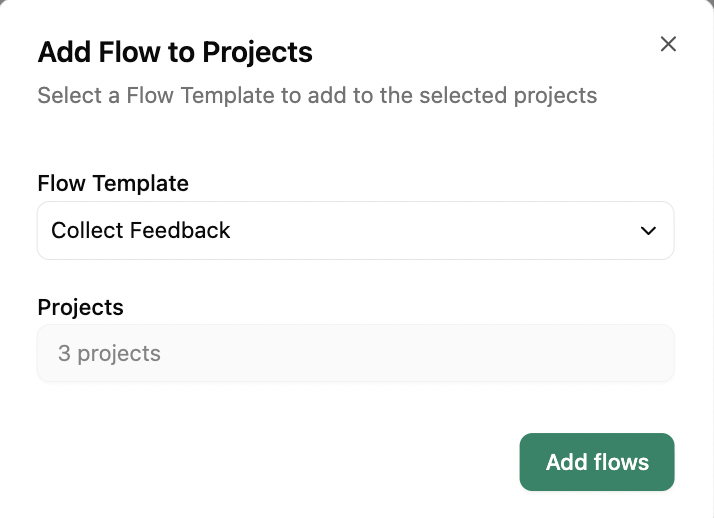
NOTE: If your mini session is on a fixed date/weekend, you can use specific dates in the workflow instead of relative timing for some of these steps. “Send on September 9th” instead of “Send 3 days after booking.” That gives you more control when you already know exactly when the sessions are happening.
Embed the Scheduler on Your Website
If you’re sending clients directly to the scheduler link, you’re leaving a visual opportunity on the table.
Build a page on your website that shows your work — gallery images from past sessions, the location, what’s included, the price — and embed the scheduler at the bottom. Clients see everything they need to make a decision before they ever pick a time slot. They’re not clicking into a Dubsado window cold with no context.
When you’re ready to promote, link to that page — not the scheduler directly. On Instagram, in your email, anywhere you share it. Traffic to your website is always better than traffic somewhere else.
If you’re sending a direct link to the scheduler in an email instead, make sure the key details are in two places: in the email itself, and in the welcome message on the scheduler. Price, dates, location. Don’t make them go hunting for information before they can book.
What About Multiple Locations?
Don’t try to make one scheduler handle multiple locations. Create a separate scheduler for each location — you can customize the availability, confirmation email details, and session description for each one. Then group them inside a Dubsado scheduler group so clients see one link, can compare the options, and click into whichever location works for them.
A Quick Note on Appointment Smart Fields
People ask about this all the time, so I want to be direct: appointment smart fields — the Dubsado fields that auto-populate with the client’s booked date and time — do not work in workflows for public mini session bookings. They only work when the scheduler was sent through that specific workflow. Since your mini session scheduler is public, those fields will show up blank in workflow emails.
For anything that needs to include the specific date and time, use your scheduler reminder emails. Those pull the appointment details correctly.
The Short Version
Here’s what the full setup looks like:
- Build your scheduler with the right session length, increment, and fixed date range
- In the Advanced tab, add your invoice directly to the scheduler
- Write a branded confirmation email and add reminder emails based on how far out you’re booking (add these directly to the scheduler)
- Attach a short lead capture form — name, email, phone number, address, and no more than one or two session-specific questions — so every booking creates a project
- Add a redirect URL to your own website
- Build a workflow to collect a signed contract (if preferred).
- Build a workflow for session prep triggered after contract is signed — questionnaire, prep info, and feedback request (or feedback separately after galleries are delivered)
- Embed the scheduler on a page on your website and promote that page, not the direct scheduler link
Set it up once before mini session season and it runs every time.
If you want someone to build this with you, this setup can typically be built and tested in a single hour. Book a 60-minute strategy + implementation call and we’ll knock it out together.
Want to go deeper on the Dubsado scheduler or workflows for your signature offer? Check out How to Use the Dubsado Scheduler for Photographers — and Dubsado Workflows for Photographers to see how the workflow side connects to everything else in your client experience.


Signature Series


Your business works, but your backend is costing you.
A 4-Part Audio Series for service-based business owners who are ready to upgrade their “just fine” client experience, unlock higher pricing, increase referrals, and grow more sustainable revenue—without overworking behind the scenes.
Get the FREE 4-part audio training series
Systems That Sell


© 2022-2025 Colie James


